
Summarize YouTube videos. Free and unlimited.
No sign-up, no daily limit, no ads in your summaries. Get a summary of any video in one click from ChatGPT, Gemini, Claude, Mistral or Grok, with the full transcript right beside it.
This is an extension for Chrome or Edge on a computer. Send yourself the link and install it there.
- No sign-up
- Unlimited summaries
- Your transcripts never touch our servers
No account. No limit. No catch.
Most YouTube summarizers make you sign up, cap you at a few summaries a day, then ask you to pay. This one doesn’t.
No sign-up
Install it and summarize. No account, no email, no login wall before your first summary.
Unlimited
No daily cap and no “upgrade to keep going”. Summarize every video you watch.
Free, with no ads in your summary
We don’t add links or promotions to your prompt. The summary is just the summary.
Private
The transcript goes straight from YouTube to your AI. It never passes through our servers. Read our privacy policy.
From video to summary in one click.
-
Step 1
Install the extension
Add it from the Chrome Web Store. No account needed.
-
Step 2
Open a video
The YouTube Summary panel appears beside every video.
-
Step 3
Click Summarize
Your AI opens with the transcript already in the prompt and writes the summary. Ask follow-up questions right there.
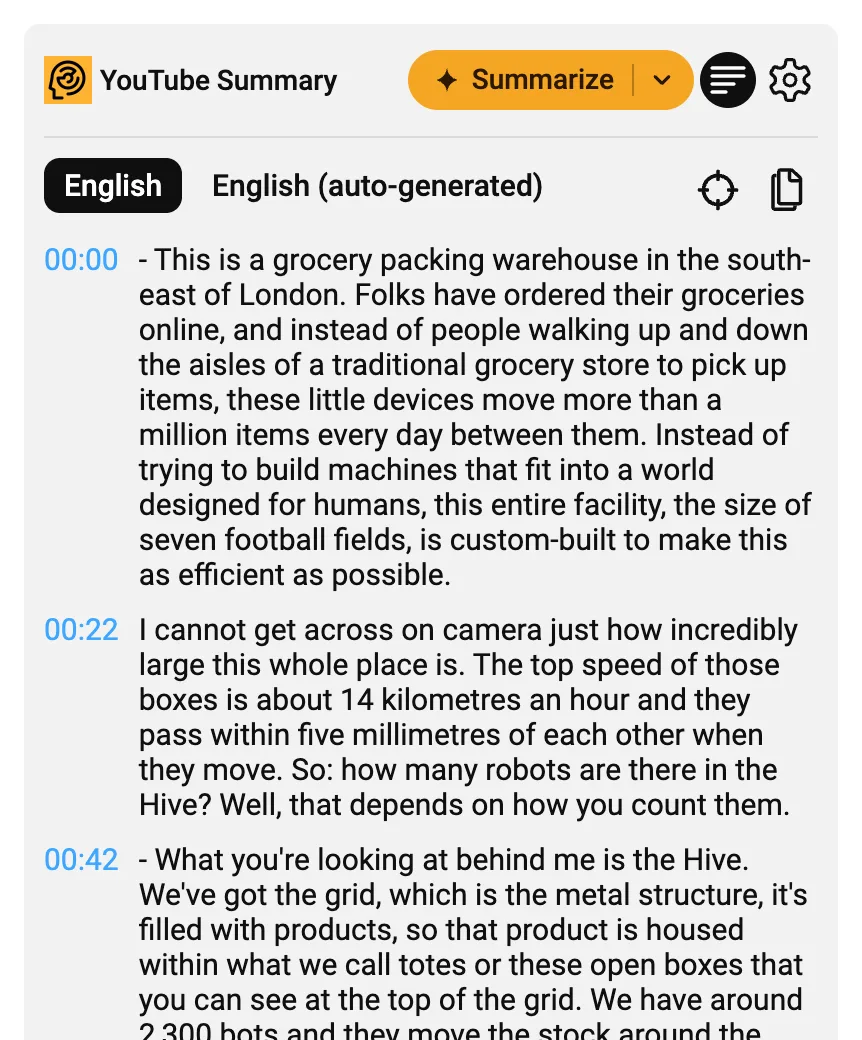
The whole video, as text you can click.
Click the transcript icon in the panel to read the full transcript, timestamped, beside the video.
- Click any line to seek the video to that moment.
- Jump to current time scrolls the transcript to what’s playing now.
- Copy the transcript with timestamps, as plain text or as Markdown with a link to each moment.
- Switch caption tracks, including auto-generated ones and other languages. Your own language comes first.
 Gemini
 ChatGPT
 Claude
 Grok
Grok Mistral
Summarize with the AI you already use.
It works with ChatGPT, Gemini, Claude, Mistral and Grok. Pick a default for the Summarize button, or choose another from the arrow next to it for any video.
The summary opens in your own account on that chat site, so there’s no API key to set up and nothing extra to pay.
Small extension, plenty of options.
Your own prompt
Edit the prompt template to get bullet points, a detailed breakdown or answers to your own questions. It can use the video’s title, URL and transcript.
Summaries in your language
Have the summary written in any of 18 languages, whatever language the video is in.
Summarize from anywhere
Use the Summarize button, the star in the video player, the toolbar icon, or Ctrl+Shift+S (⌘+Shift+S on a Mac).
ChatGPT temporary chat
Turn it on to keep summaries out of your ChatGPT history.
Choose your Google account
Signed into several Google accounts? Pick the one Gemini opens with.
Picks up after you sign in
Signed out of your AI? Sign in and the transcript is sent for you. If a chat site changes, copy the prompt with one click.
See it in action.
Questions & answers
More in the getting started guide
How does it summarize YouTube videos?
The extension reads the video’s captions and puts the title, URL and transcript into a prompt. It then opens your chosen AI (ChatGPT, Gemini, Claude, Mistral or Grok) in a new tab and sends the prompt, so the summary appears there and you can ask follow-up questions.
Which AI should I use?
Whichever you already use. Gemini is the default; change it in Settings, or pick another AI from the arrow next to Summarize for a single video.
Do I need an account?
Not with us. You need to be signed in to the AI chat site you summarize with, and that site’s usual limits apply. If you aren’t, the extension asks you to sign in, then sends the transcript for you.
For Gemini, if you’re signed into several Google accounts, choose which one to use in Settings. Work and school (Workspace) accounts may not work; try a personal Google account.
Where is the Summarize button?
In the YouTube Summary panel, beside the video and above the suggested videos. There’s also a star button in the video player’s controls, and clicking the extension’s toolbar icon on a video page summarizes it too.
Can I customize the summary?
Yes. Edit the prompt template in Settings and choose the language the summary is written in.
What if a video has no transcript?
The transcript comes from the video’s captions, including YouTube’s auto-generated ones. If a video has no captions at all, the panel says so.
Can I use it with my class?
Yes. It works on Chromebooks and any computer with Chrome or Edge. The guide for teachers has a link and QR code to share with students, and the steps for installing it on every school device.
Is it really free and unlimited?
Yes. The extension is free, with no ads, no sign-up and no limit on how many videos you summarize. There’s no paid plan to upgrade to.
The summary is written by the AI chat site you pick, so that site’s own usage limits still apply.
Using videos in class?
Students get a summary and a clickable transcript of any lesson video. Share one link with your class, or have your school install it on every Chromebook.
Also from Dictanote
Small, focused tools from the same team. Free to try.
Watch less.
Learn more.
 Add to Chrome
Free and unlimited for Chrome and Edge. No sign-up.