

Getting started
Install
Install the YouTube Summary with AI extension for Chrome. No sign-up required. YouTube tabs you already have open get the panel straight away, with no reload needed.
Tip: pin the extension so its icon is always in your toolbar. Click the puzzle-piece icon next to the address bar, then the pin next to YouTube Summary with AI.
Your first summary
- Open a YouTube video, for example this one. Any video with captions works.
- Click Summarize in the YouTube Summary panel beside the video.
- Read the summary. Your AI opens in a new tab with the video’s title, URL and transcript already in the prompt, and writes the summary. Ask follow-up questions right there.
You need to be signed in to that AI’s website. Gemini is the default; you can change it any time.
Ways to summarize
All of these summarize the video you’re watching with your default AI:
- The Summarize button in the panel.
- The ✦ star button at the bottom right of the video player, beside its other controls. Handy in full screen and theater mode.
- The extension’s toolbar icon, while you’re on a video page. Elsewhere, it opens Settings and shows where to find the Summarize button.
- A keyboard shortcut:
Ctrl+Shift+S(⌘+Shift+Son Mac). It’s off by default; turn it on in Settings.

Use a different AI for one video
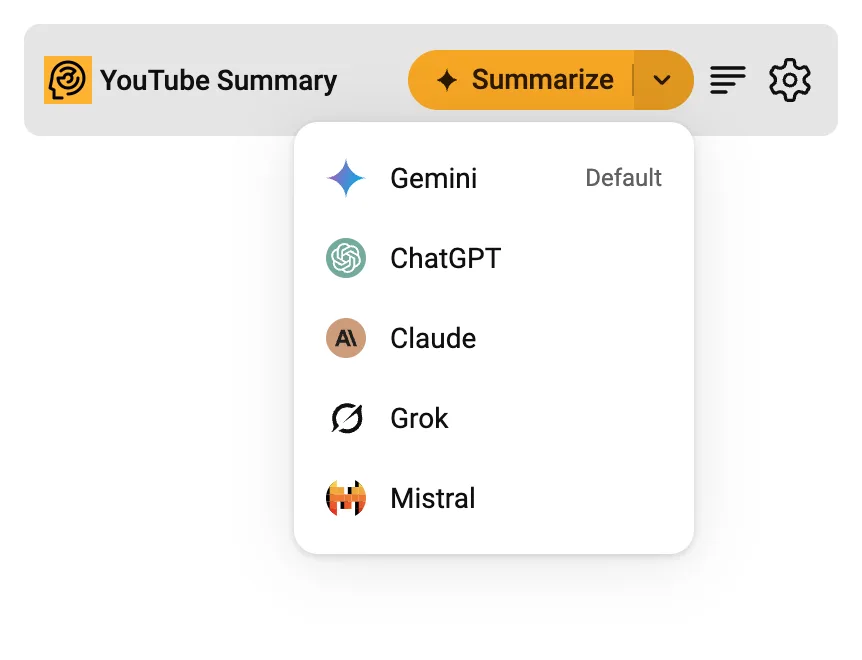
Click the arrow next to Summarize and pick ChatGPT, Gemini, Claude, Mistral or Grok. Your default AI is marked Default. To change the default, see Settings.
If you’re not signed in
If the AI’s website asks you to sign in, a card on that page explains what to do. Sign in, and the extension adds the transcript and sends it for you. You can also switch to another AI from the card.
If a chat site changes its page and the prompt can’t be added, the card offers to copy the prompt so you can paste it in yourself, or to try another AI.
Read the transcript
Click the transcript icon (the lines next to the gear) in the panel to show the full, timestamped transcript. Clicking anywhere else on the panel’s header does the same.
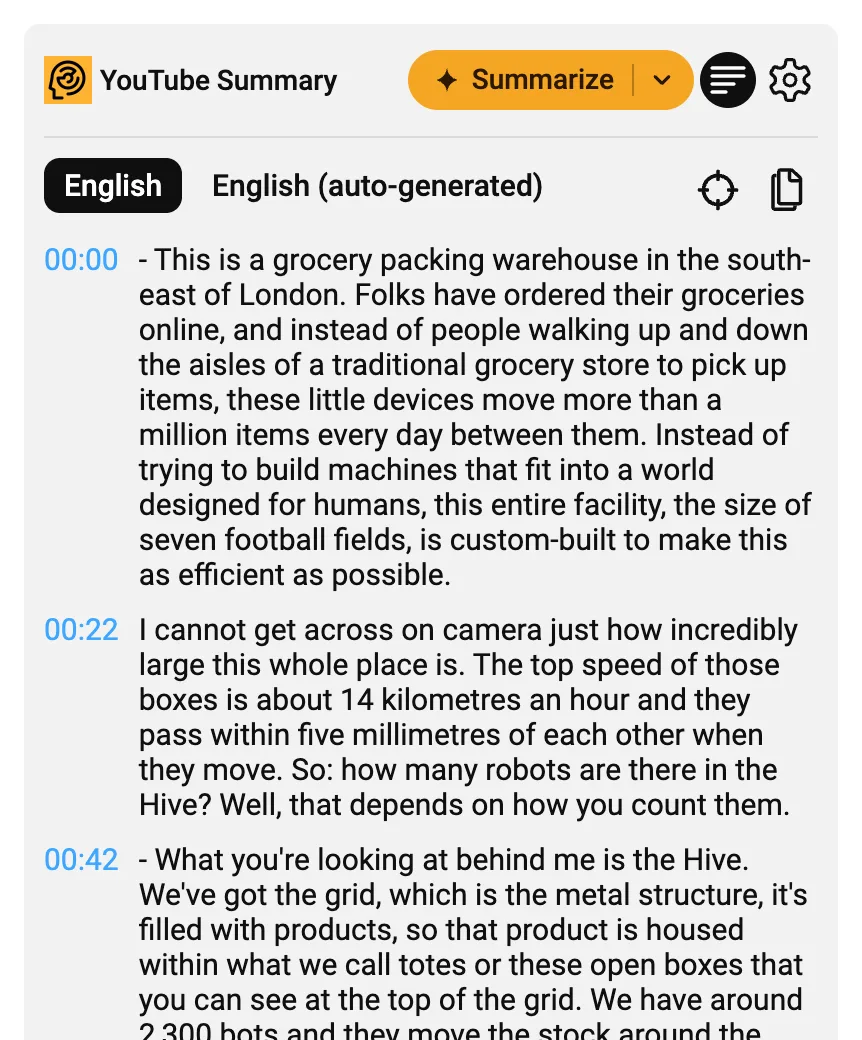
- Click any timestamp to seek the video to that moment.
- The crosshair button scrolls the transcript to what’s playing now.
- The copy button copies the whole transcript with timestamps. In Settings, choose plain text or Markdown (each line links to its moment in the video).
- The buttons above the transcript switch between caption tracks, such as auto-generated captions or other languages. The track in your browser’s language is picked first.
Settings
Click the gear in the panel to open Settings, or open them here.
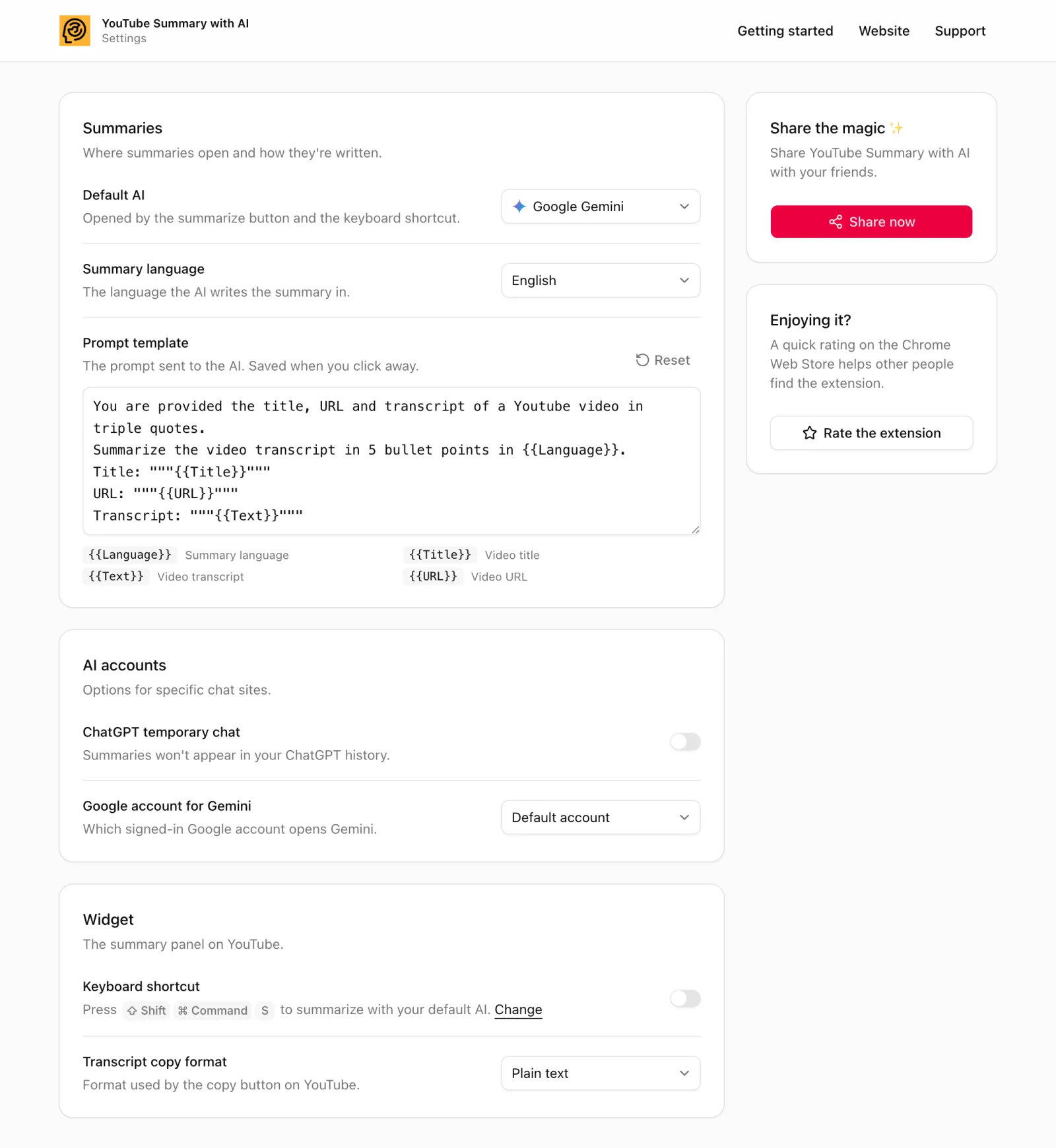
- Default AI: the AI used by the Summarize button, the player button, the toolbar icon and the keyboard shortcut. Gemini out of the box.
- Summary language: the language the summary is written in, from 18 languages, whatever language the video is in.
- Prompt template: what’s sent to the AI. Ask for more bullet points, a detailed breakdown or answers to your own questions. Use
{{Title}},{{URL}},{{Text}}(the transcript) and{{Language}}(the summary language). It saves when you click away; Reset restores the default. - ChatGPT temporary chat: keeps summaries out of your ChatGPT history.
- Google account for Gemini: if you’re signed into several Google accounts, pick the one Gemini opens with. Default account is your first one, Account 1 your second, and so on.
- Keyboard shortcut: turn the shortcut on, or click Change to pick different keys on your browser’s shortcuts page.
- Transcript copy format: plain text or Markdown, as above.
The extension itself is available in English, Chinese, French, German, Indonesian, Italian, Japanese, Korean, Portuguese, Russian, Spanish and Vietnamese, and follows your browser’s language.
Troubleshooting
- I don’t see the panel. It appears on video pages (
youtube.com/watch), above the list of suggested videos. If it’s missing, reload the page. - “No captions available for this video”. The transcript comes from the video’s captions, including YouTube’s auto-generated ones. Some videos, such as music and very new uploads, have none yet.
- The keyboard shortcut does nothing. Check it’s turned on in Settings. If Settings says no shortcut is set, another extension already uses those keys; click Set shortcut to choose others.
- Gemini doesn’t work with my account. Work and school (Workspace) Google accounts may not work with Gemini. Pick a personal account under Google account for Gemini, or try another AI.
- The AI says it hit a limit. Summaries are written by the AI chat site, so that site’s own usage limits apply. Pick another AI from the arrow next to Summarize.
Still stuck? Email support@dictanote.co.
Spread the word
If it saves you time, please tell others about it.